
Is your old Android phone slowed down? Does it take too long to open apps, hang when you browse, or freeze when you try to do something?
If yes, you’re not alone. Many Android phones get slower over time, especially when their storage gets full or apps start using more resources.
Don’t plan to buy a new phone; instead, you may try a few simple things. You don’t need to be a tech expert to follow this guide. Most of these methods are free, easy to do, and can help your phone run more smoothly.
Let’s get started.
10 Useful Tips To Speed Up Your Android Phone
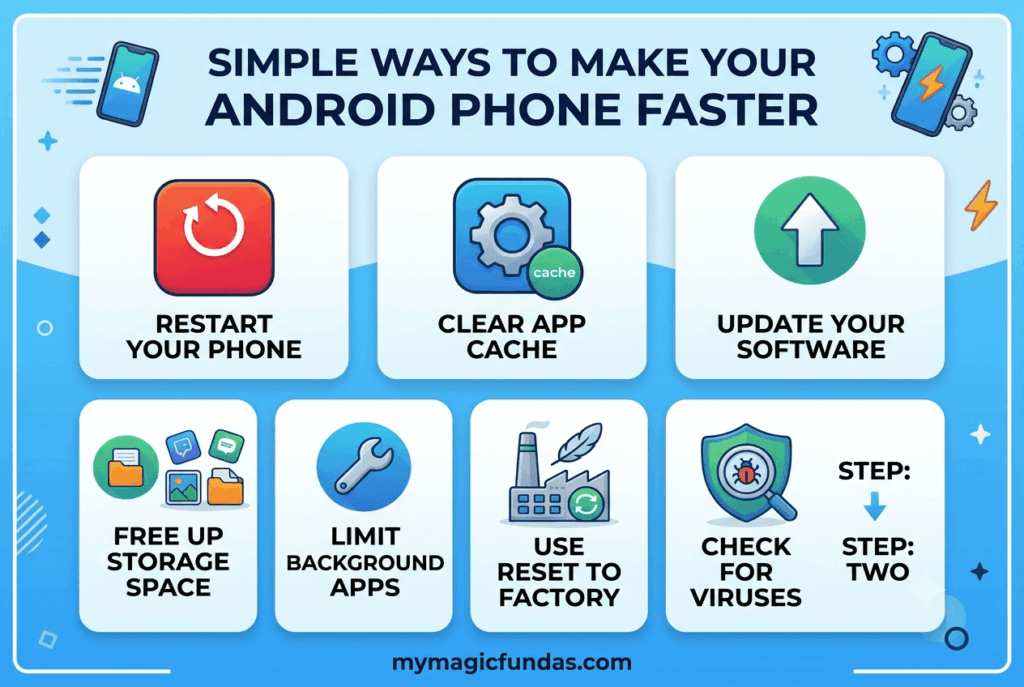
1. Restart Your Phone First
This is simple, but restarting your phone is worth trying before anything else.
Sometimes, apps keep running in the background, or a temporary software problem makes the phone feel sluggish. A restart can clear some of these temporary issues.
What to do:
- Press and hold the power button.
- Select Restart.
- Wait for your phone to turn back on.
If your phone has been running for several days without a restart, give this a try. It won’t solve every performance problem, but it’s a good first step.
2. Free Up Some Storage Space
One common reason that your old phone struggles is that its internal storage is almost full. When there’s very little space left, installing updates, saving files and performing everyday tasks can become difficult.
Here’s how you can clean things up:
1. Open Settings.
2. Go to Storage. The name may differ depending on your phone.
3. Check which files and apps are taking up the most space.
4. Delete old downloads, unwanted videos and duplicate files.
5. Remove apps you haven’t used in a long time.
Don’t delete everything just to free up space. Keep your important photos, documents and WhatsApp files safe. If you’re unsure about a file, leave it alone until you’ve checked what it is.
My suggestion: Start with your Downloads folder. You might find old PDFs, videos and installation files you no longer need.
3. Uninstall Apps You No Longer Use
How many apps you’ve installed over the years? Some might have been useful once, but you probably don’t open all of them anymore. Unused apps take up storage, and some may continue running background processes.
To remove an app, open Settings, go to Apps, select the app and tap Uninstall. You can also uninstall many apps by pressing and holding their icons on the home screen.
Be careful not to remove apps you need for banking, security, accessibility or other important tasks. If an app came preinstalled on your phone, you may only have the option to disable it.
A cleaner phone is easier to manage, and removing unnecessary apps can help when storage or background activity is contributing to the slowdown.
4. Clear the Cache of Apps
Have you noticed that one particular app takes forever to open, even though the rest of your phone works reasonably well? The problem might be related to that app rather than your entire phone.
Apps store temporary files called cache to help them load content more quickly. Occasionally, clearing this cache can help resolve problems or free up some space.
Here’s what to do:
1. Open Settings.
2. Tap Apps.
3. Select the app that’s giving you trouble.
4. Open Storage or Storage and cache.
5. Tap Clear cache.
Remember to choose Clear cache, not Clear storage or Clear data. Those other options can remove saved app information or log you out.
There’s no need to clear every app’s cache every day. Try it only when an app is misbehaving or using an unusually large amount of cached storage.
5. Make Your Phone Faster by Reducing Animations
This is one of my favourite tricks for making an older Android phone feel more responsive.
When you open an app, switch between screens or return to the home screen, Android uses animations. On some older phones, these effects can make everything feel a little slower.
You can reduce them through Developer options.
Follow these steps carefully:
1. Open Settings and select About phone.
2. Find Build number.
3. Tap Build number seven times. You may need to enter your phone’s PIN.
4. Return to Settings and open Developer options.
5. Find Window animation scale, Transition animation scale and Animator duration scale.
6. Set each option to 0.5x.
The exact menu names and steps can vary between phone brands.
Your phone may now feel quicker when switching between apps and screens. This doesn’t increase its actual processing power, but it reduces the time spent on visual effects.
Don’t change other Developer options unless you know what they do.
6. Update Your Apps and Phone Software
It’s tempting to ignore software updates, especially when your phone is old. However, updates can fix bugs, improve compatibility and address security problems.
To check for an Android update, open Settings and search for Software update or System update. If an update is available, read the details before installing it.
You can update your apps through the Google Play Store:
1. Open the Play Store.
2. Tap your profile picture.
3. Select Manage apps and device.
4. Check for available updates.
Keep in mind that a software update won’t necessarily make an old phone faster. Some updates need more resources, so performance can vary. Back up your important files before installing a major update.
7. Find Apps That Are Draining Your Phone’s Resources
Some apps use a lot of battery and processing power, even when you’re not actively using them. If your phone becomes slow or hot regularly, it’s worth checking what’s happening in the background.
Open Settings and look for Battery or Battery usage. Check whether any app is consuming an unusually large amount of power. If you find an app you rarely use, uninstall it or restrict its background activity if your phone provides that option.
Avoid installing random RAM-cleaner or task-killer apps. They often don’t provide lasting improvements, and repeatedly stopping apps can sometimes make them restart and use more resources.
Also, don’t restrict important apps if you rely on them for messages, alarms or other background functions.
8. Keep Your Home Screen Simple
Your home screen might not seem important, but keeping it simple is worth trying on an older phone. Live wallpapers, animated effects and resource-heavy widgets can use additional resources on some devices.
Try these small changes:
- Use a regular wallpaper instead of a live wallpaper.
- Remove widgets you never use.
- Keep only your most-used apps on the home screen.
- Turn off unnecessary visual effects if your phone offers the option.
Don’t make your phone look boring; Remove things that you don’t really need. The improvement may be small, but these changes can make the phone feel cleaner and easier to use.
9. Check the Battery and Watch Out for Overheating
If your phone is several years old, its battery may have deteriorated. Overheating can also cause some phones to reduce performance to protect themselves.
Pay attention if your phone frequently gets unusually hot, shuts down unexpectedly or slows down dramatically during ordinary tasks.
If it’s overheating, stop demanding tasks and let it cool down. Avoid using it heavily while charging if that makes the problem worse.
If the problem continues, consider having the battery and hardware checked by a qualified technician. A factory reset won’t fix a worn-out battery or failing hardware.
10. Should You Utilize Factory Reset?
You may have heard that a factory reset makes every slow phone fast again. That’s not always true.
A reset can help if persistent software problems or accumulated app-related issues are causing the slowdown. However, it won’t give your phone more RAM or repair ageing hardware. Try the simpler methods in this guide first.
If you decide to reset your phone, back up your photos, contacts, documents and other important data. Make sure you know your Google account details before proceeding because a reset erases local data and may require you to sign in again.
Final Thoughts
An old Android phone doesn’t always need to be replaced just because it has started slowing down.
Start with the basics: restart it, free up storage and remove apps you no longer use. If it still feels sluggish, try clearing the cache of problematic apps, reducing animations and checking for software updates.
You might not see a dramatic improvement from every tip, and that’s perfectly normal. The result depends on your phone’s hardware, age, software and current condition.
Try these steps one at a time and see which ones make a difference. Sometimes, a little maintenance is all your phone needs to become comfortable to use again.
Have you found another way to speed up an old Android phone? Share your experience with me. Your tip might help someone else get more life out of their phone.
