
Google Chrome is perhaps the most popular browser ever used. Anyone who uses the internet is not new to Google Chrome. It does offer you several features that make it stand out as the most promising browser ever.

Google Chrome keeps shortcuts to your most visited websites on its home page. While the feature is quite useful in getting access to your most frequented websites with ease, some users may find it not very practical or useful.
So, can you remove shortcuts on Google Chrome? Let us find out.
Table of Contents
Can You Remove Shortcuts on Google Chrome?
Well, yes, Chrome lets you remove the shortcuts on its homepage. You can remove them individually if you are not comfortable with a few of them. You can even hide them all together as well.
The steps involved in how to remove the shortcuts from the Chrome homepage are not highly technical in nature either. We will help you find how to remove these shortcuts easily.
Why Delete the Shortcuts on Google Chrome?
Before we can understand how to delete the shortcuts on Google Chrome, it may be important to check why you need to delete the shortcuts.
Here are a few reasons that may make you want to delete the shortcuts:
- Outdated bookmarks: There may be a few bookmarks that you might have created and are now outdated. They may also be no longer relevant to you. Deleting them can free your browser from clutter.
- Duplicate entries: You may have multiple bookmarks that point to the same URL or pages within the same URL. Removing the duplicate shortcuts can help you clean up and manage your bookmarks.
- Security concerns: You may have a few malicious bookmarks that may be harmful to your computer. You may wish to delete them to safeguard your system.
- Proper organization: Deleting the shortcuts can help you organize your bookmarks in a better manner. That way, you will find it easy to find your links.
Well, those were just a few reasons that you would wish to delete the shortcuts on Google Chrome. You may also have a few other reasons that may make you delete the shortcuts.
How to Delete Shortcuts on Google Chrome Homepage?
Maybe there are a few shortcuts that you do not have any issues with. However, there may be a few shortcuts that you may not want to keep. You can easily remove any of them if you do not want to keep them.
Here is how you can do it:
- Open a new tab on Google Chrome.
- Locate the shortcut that you do not want to keep.
- Hover over the shortcut. You should find the three-dot menu
- Click on it
- You will now find the options to edit or delete the shortcut.
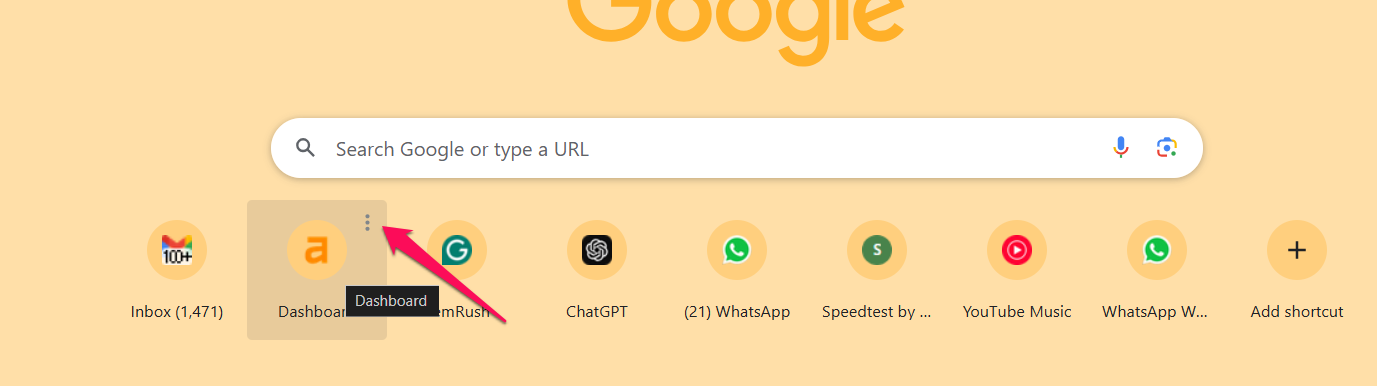
- Click on Delete and the shortcut will be deleted.
That way, you can repeat the process to delete the shortcuts individually.
How to Hide Shortcuts on Google Chrome?
The shortcuts on Google Chrome are visible whenever you open a new tab on the browser. However, there are times when you may not be looking to delete the shortcuts. But, you may just want them not to be visible.
Here is how you can hide the shortcuts from Google Chrome homepage:
- Open a new tab on Google Chrome
- Click on the Customize Chrome link visible at the bottom right.

- Now, scroll down and locate Shortcuts.
- Toggle the option for Show Shortcuts.

You can choose to hide the shortcuts that you have created or those created by Google Chrome.
Conclusion
Deleting the shortcuts from Google Chrome may be necessary because of a host of reasons. The process will help you make your browser clutter-free. You can simply follow the tips and steps outlined in this post and find the best ways to delete the shortcuts.
Remember the shortcuts on Google Chrome are the best option and can be helpful in many ways. However, if you have your own valid reasons for deleting the shortcuts on your browser, the methods here should prove to be quite useful and practical.
